What every menu option does

Waterline tries to keep the menu short, which means a few buttons carry more than they look like they do. This goes through all of them, in the order you meet them. Names in bold are exactly what the app says on screen.

The main screen

Three small buttons sit under the Waterline masthead. Below them the panel runs in order: the route card, the DEVICES row, then the two ways to row, boxed separately so it is clear which start belongs to which.

PROFILE
Your name and flag for online, which rower you are, the colours of the boat and kit, Strava, and your distance totals. Covered below.
SETTINGS
Sound, the size of the numbers on screen, graphics quality and the performance overlay. Covered below.
CREDITS
Licences and attribution for the engine, the rower models, the sounds and the photographic backgrounds. Also where the exact build number lives, which is the useful thing to quote if you report a problem.

If you open the menu in the middle of a piece, the top of the panel changes to ROW IN PROGRESS with RESUME ROWING and FINISH AND SAVE. Nothing is lost by looking at a settings page mid-row.
Choosing a route

The card at the top of the panel shows the route you are on, with and either side of it. The app labels that card COURSE 1 of 4; this page calls them routes throughout, but they are the same thing.

There are four, all closed loops: Emerald City (5,000 m), Copper Gorge (6,000 m), Emerald Karst (12,000 m) and Sentinel Gorge (4,000 m). Distance is one lap. You are never stopped at the end of one, and your best lap is kept per route, so the 4 km and the 12 km each have their own record.

Changing route clears a pacer you had picked, since that boat is out on a different river.

Connecting your machine

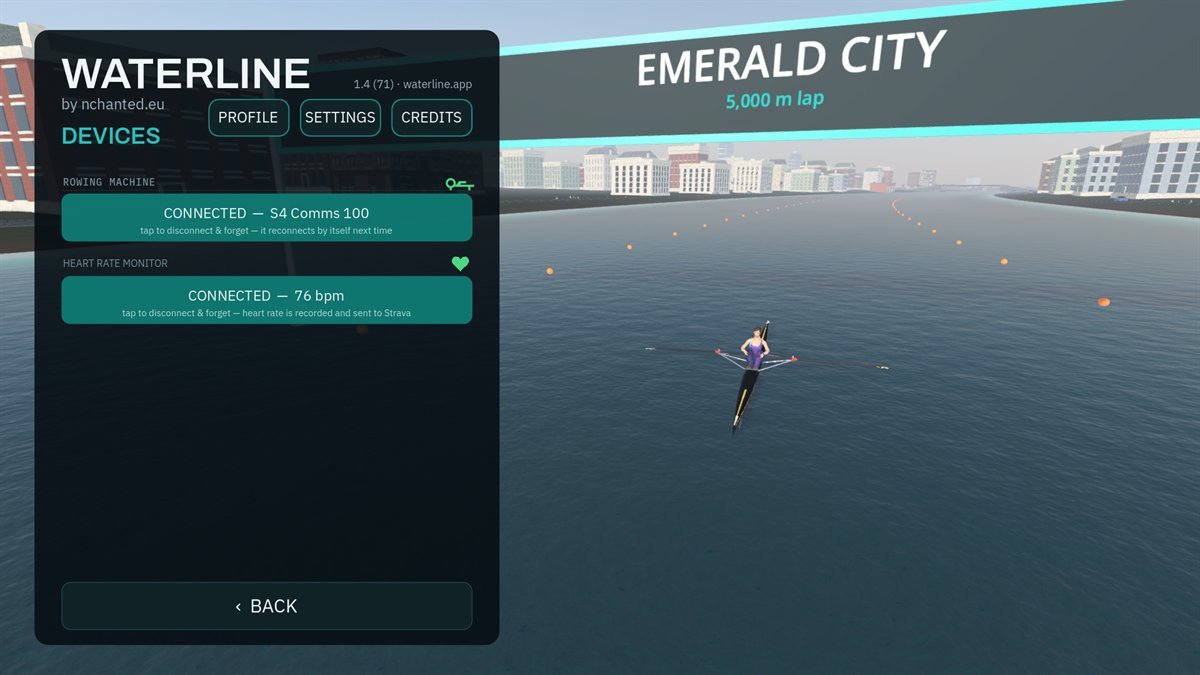
The DEVICES row on the main panel, under the route card, opens a page holding both your rowing machine and your heart rate strap. Its subtitle is a status line: it tells you what is connected before you tap it.

DEVICESthe subtitle changes
"Connect your rowing machine and heart rate strap" when nothing is paired. Once something is remembered it reads waiting for your machine — switch it on and it connects itself, which is worth knowing: a remembered machine connects on its own, but the monitor takes a few seconds to wake up and start advertising, and those seconds are not the app failing.
CONNECT ROWING MACHINEon the devices page
Everything the phone can see, in the order it was found, each tagged with what it looks like (rowing machine, bike, or nothing if it will not say). The one you used last is highlighted. Nothing is filtered out by name, because a filter once hid a real machine for a whole release.
CONNECTED — [name]tap to disconnect and forget
Your machine is remembered and reconnects on its own every time you open the app, and again by itself if it drops mid-row. Tapping this is how you forget it, which is what you want when you change machines.
CONNECT HEART RATE MONITOR
A separate scan on its own connection, so a strap can never be confused with the machine. Any standard Bluetooth strap works. It is remembered the same way, and the reading goes to the display and into anything you send to Strava.
No machine at all
Both start buttons still work. The subtitle says demo mode — no machine connected and the app rows for you so you can look around. Demo rows are deliberately kept out of your stats and best times.
The devices page with a rowing machine and a heart rate strap both connected
A machine and a strap, both paired and both remembered.

Row offline

The first of the two boxes. Pick who is on the water with you, then START.

SOLO
Nobody alongside. You still get every number on screen, and you can still row an interval session; it is only the company that goes.
PACE BOAT
A boat that holds your target pace exactly, for you to race. The progress bar shows the gap in metres, ahead or behind, and the panel on the right lists it with the split it is holding.
COACH
A boat that keeps station at your shoulder and talks instead. "You're nine seconds up, ease it back to target." Better than the pace boat if you tend to chase a hull rather than hold a rhythm.
START
Onto the water. Timing begins as you cross the line, not when you tap.

Target pace

With a pace boat or a coach selected, a / + stepper appears with the target between them, marked fixed pace /500m.

Eighteen settings, from 3:00 down to 1:30 per 500 m, in five-second steps through the middle of the range where most training actually happens and coarser at the very easy end. Whatever you set is what the pace boat rows, and what the coach holds you to.

If you have an interval session selected instead, this row is replaced by STEADY PACE (with a companion) or FREE ROW (solo), which is how you drop back out of the session to a single unchanging target.

Interval workouts

INTERVALS › beside the pace stepper, or INTERVAL WORKOUT › across the box when you are rowing solo. Three sessions ship with the app and you can write your own.

The list
Tap a name to select it; tap EDIT beside it to open it. Selecting one changes the offline box to show its name and shape, so you can see what you are about to row without opening anything.
+ NEW WORKOUT
Starts a fresh session. Saving an edited built-in keeps the original and adds your version rather than overwriting it.
DELETE
Removes your own sessions. A built-in is only hidden, and a RESTORE row appears at the bottom of the list to bring them all back.

Inside the editor

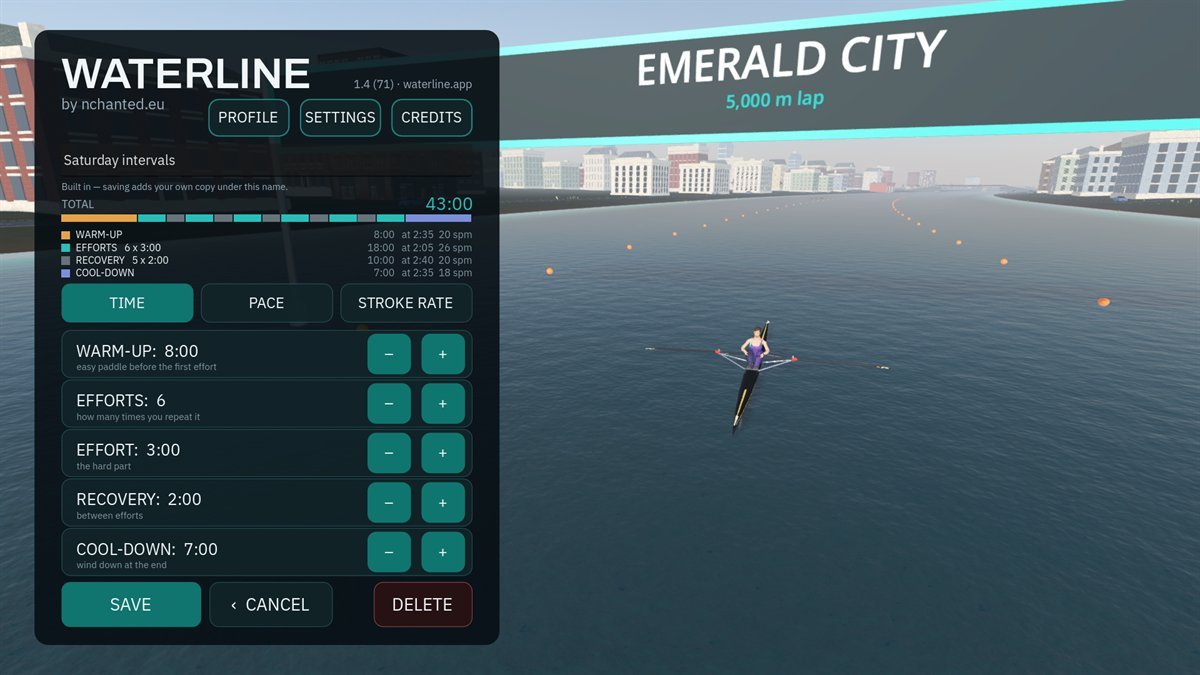
Three tabs across the top, because a session has three dimensions to it.

TIME
WARM-UP, EFFORTS (how many), EFFORT (how long each one is), RECOVERY between them, and COOL-DOWN.
PACE
A target for the warm-up, the efforts, the recoveries and the cool-down. EACH EFFORT is the progression: up to five seconds per 500 m faster or easier than the one before, which is how you write a descending set.
STROKE RATE
An optional rate target per phase. Off unless you set it, and it is a reminder rather than a second thing to fail: the display shows the rate you are meant to be holding and the coach mentions it.

While you row a session, a banner across the top carries the phase, its target, the countdown to the next one, what that next one is, and how much of the whole session is left. Every change chimes, pitched up going into an effort and down coming out of it, so you do not have to watch for it.

The interval workout editor on the TIME tab
The editor. Stroke rate targets live on the third tab.

Row online

The second box. Same route you picked above, but with everyone else who is out on it.

There is no lobby, no join code and no countdown. The subtitle under START tells you what you are joining before you tap it: how many real people are on your route, and how many pace boats, counted separately so that an empty river says it is empty. If no machine is connected it says so there too.

Once you are out there, a panel lists the ten nearest rowers by name, with the gap along the loop and the pace each is holding. Everyone appears in the boat and kit colours they chose. People arrive and leave without interrupting anyone, because you each row your own distance around the loop.

Interval sessions you wrote are an offline feature. Online there is one session, the pacer's, so a set you armed for Tuesday does not follow you into Thursday's group row. It stays selected for your next offline piece.

Chase a pacer

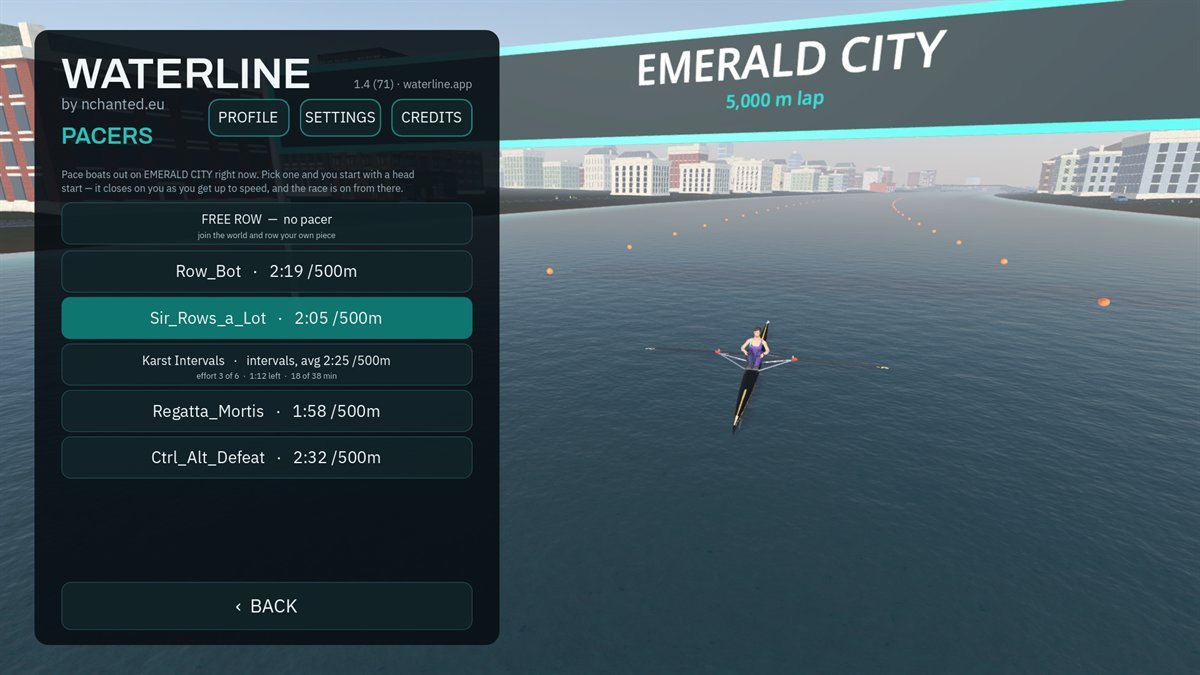
CHASE A PACER › under the online start. Pace boats are out on every route at a spread of paces, listed by name and current split.

Picking one
A selection, not a start. The page returns to the menu, the online button names the boat, and you go when you tap START. You are given a head start and the pacer runs you down as you settle in.
FREE ROW — no pacer
Clears the choice. Changing route clears it too.
The interval pacer
One boat rows a session rather than a steady pace. The list shows its average and where it has got to: effort three of six, seventy seconds left, eighteen minutes into thirty-eight. Chase it and that session drives your banner, chimes included.
The pacer list with names, splits and one interval pacer's position in its set

Profile

Who you are, what you look like on the water, and what you have done so far.

YOUR NAME
Stored on the device, and also the name other rowers see online. There is no separate one to fill in. It is public to everyone on your route while you row online, so pick something you are happy for strangers to read; it does not have to be your real name.
COUNTRY
Optional, and Global until you choose. It puts a small flag next to your name online. It is a flag you picked from a list, not your location: nothing looks up or infers where you are.
ROWER
Male or female. Both are properly rigged models whose arms follow the oar handles and whose legs stay on the stretcher, so the stroke on screen is the stroke you are pulling.
BOAT
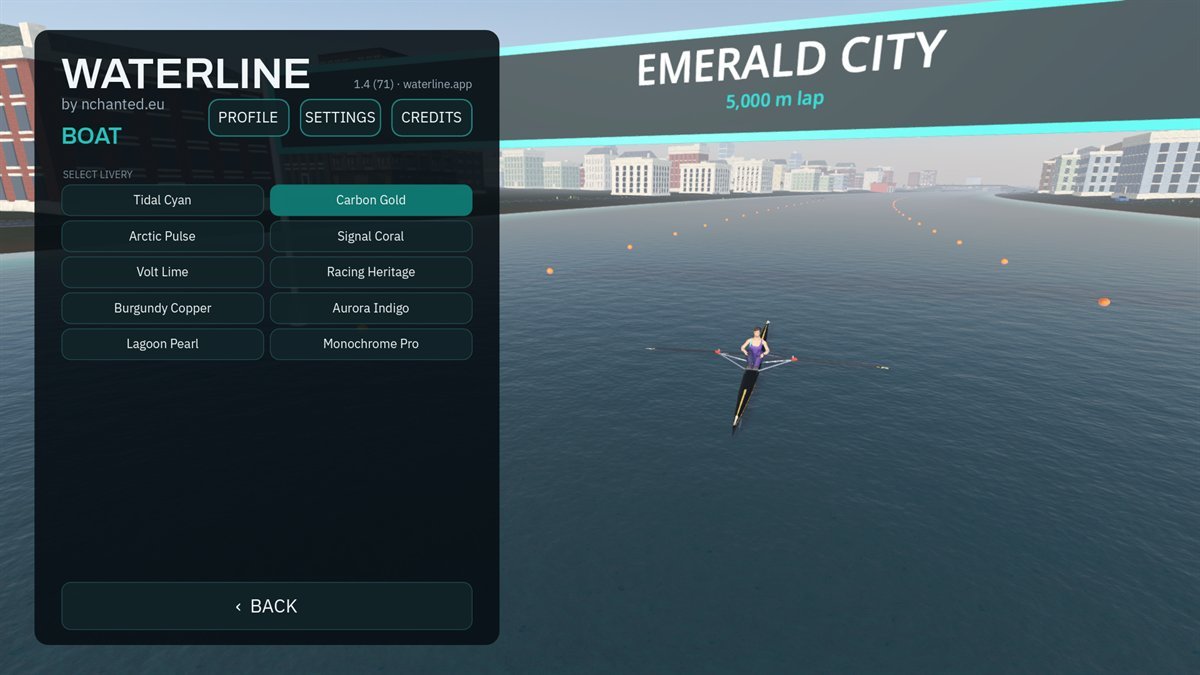
DECK & OARS and HULL, from sixteen real rowing colours: Oxford and Cambridge blue, Leander cerise, Empacher yellow, Washington purple and the rest. Applied live behind the menu.
CHARACTER
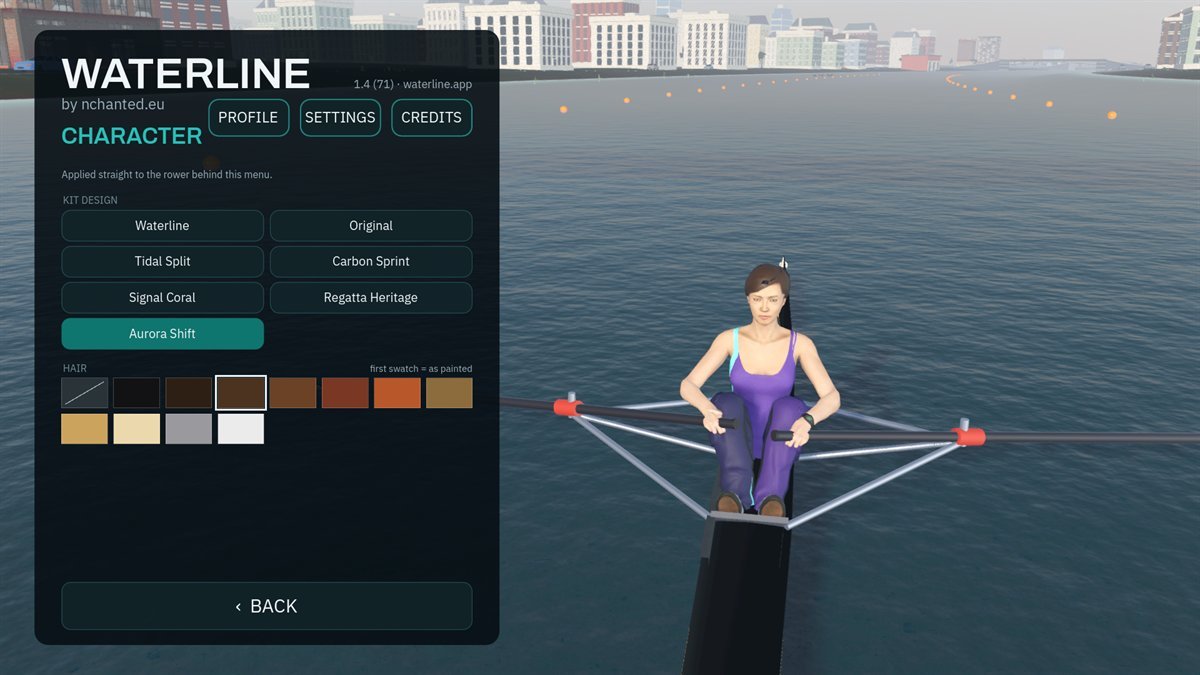
KIT and HAIR. Eleven natural hair shades, and kit in whatever your club wears. Everyone you row with online sees all of it.
STRAVA
CONNECT STRAVA opens your browser to sign in at strava.com, so the app never sees your password. After that, each finished piece offers an upload button on its summary card. It is per piece and never automatic, and demo rows are never offered. DISCONNECT removes the stored token.
STATS
Distance, time and sessions for THIS WEEK, THIS MONTH and LIFETIME.
Choosing deck, oar and hull colours
Choosing kit and hair colours

Settings

SOUND
On gives you the river, birdsong, the catch of each stroke and the finish chime. Off is silence, for rowing to your own music.
HUD SIZE
How big the metric cards along the top are, as a percentage. Worth turning up if the phone is propped further away than arm's length.
GRAPHICSAUTO, LOW, MEDIUM, HIGH
AUTO follows what the app measured your device to be, and keeps watching while you row: if the frame rate drops it eases off by itself. The recommended tier for your device is named under the row.
You can override it, and going above the recommendation is the one setting here that can cause trouble. It draws more and uses more memory, which on a modest phone means stutter or a crash. The warning turns amber once you have actually gone past it.
PERFORMANCE OVERLAY
Frame rate and memory on screen while you row. Off by default. Turn it on if you are reporting a problem, and tell me what it says.

Your machine and strap are not here: they live on the DEVICES row on the main panel, where you can see their state without opening anything.

While you row

Four controls, and none of them stop the boat except the obvious one.

top left
The menu, with the piece paused behind it. RESUME ROWING puts you back; FINISH AND SAVE ends it and takes you to the summary.
HUDbottom right
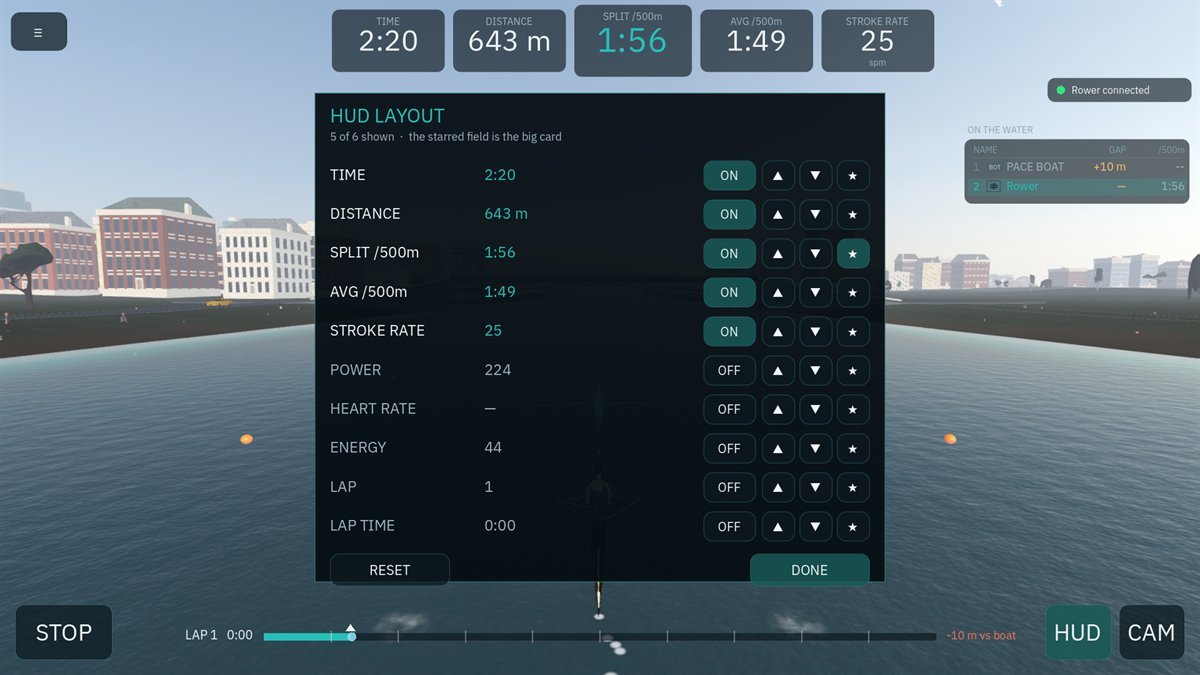
Opens the layout editor over the top of the row, which keeps running behind it so you are choosing between live numbers rather than labels. Ten fields to choose from: time, distance, split, average split, stroke rate, power, heart rate, energy, lap and lap time.
Each line has ON/OFF, and to move it along the row, and to make it the big card. Six can be shown at once; the editor refuses a seventh rather than letting the row overflow. RESET puts it back to the default six, DONE closes it.
CAMbottom right
Cycles four views: behind and above the boat, aiming down the route so the camera swings into the bends; from the side; from ahead of the bow; and first person. The first-person view faces astern, because that is where a sculler actually looks. You see the water you have covered, your own legs, and the handles coming at your chest.
STOPbottom left
Ends the piece and opens the summary.

Stop rowing and the piece pauses itself. Start again and it picks up. You do not have to tell it anything.

The HUD layout editor open over a row in progress
The layout editor, with the row still going behind it.

When you stop

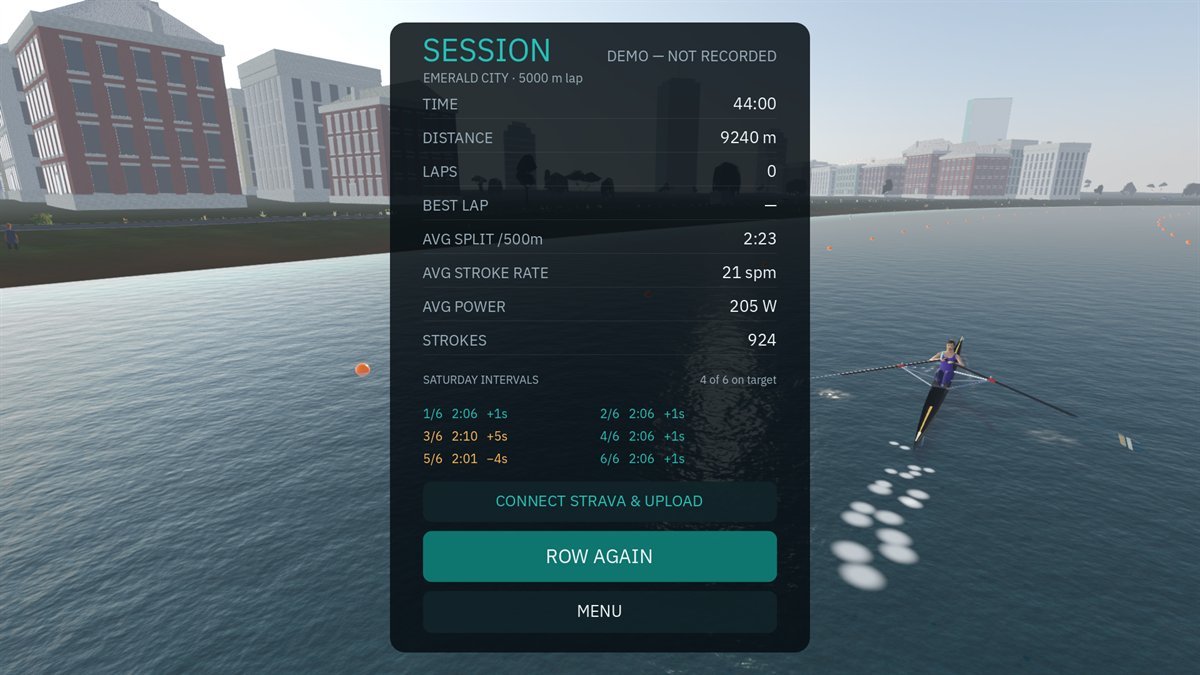
The summary card, headed SESSION, and NEW BEST LAP across the corner if you earned it.

Time, distance, laps, best lap, average split, average stroke rate, average power and stroke count. Every 500 m section is timed underneath, with your personal bests marked. If you rowed an interval session, each effort is listed and scored against the pace it was meant to be, within three seconds per 500 m.

From here, UPLOAD TO STRAVA sends this one piece (it reads CONNECT STRAVA & UPLOAD if you have not set that up yet, and it saves the piece before sending you to the browser, so nothing is lost either way). ROW AGAIN puts you straight back on the same water. MENU goes home.

The session summary card with 500 m section times

Something here not behaving the way this page says it does? That is worth an email. Tell me about it.